uiimport
Import data from csv/txt/xlsx file
Syntax
uiimport()
uiimport(filename)
Arguments
- filename
a string: name or path of file
Description
uiimport opens a Scilab application which asks you to select the CSV, TXT or XLSX file to load data.
uiimport(filename) directly imports data in the application from filename.
This application is also available in Scilab console menu: Applications > Import Data.
It is divided into two parts: preview (center panel) and options management (left panel). Changes made in the left panel update the preview.
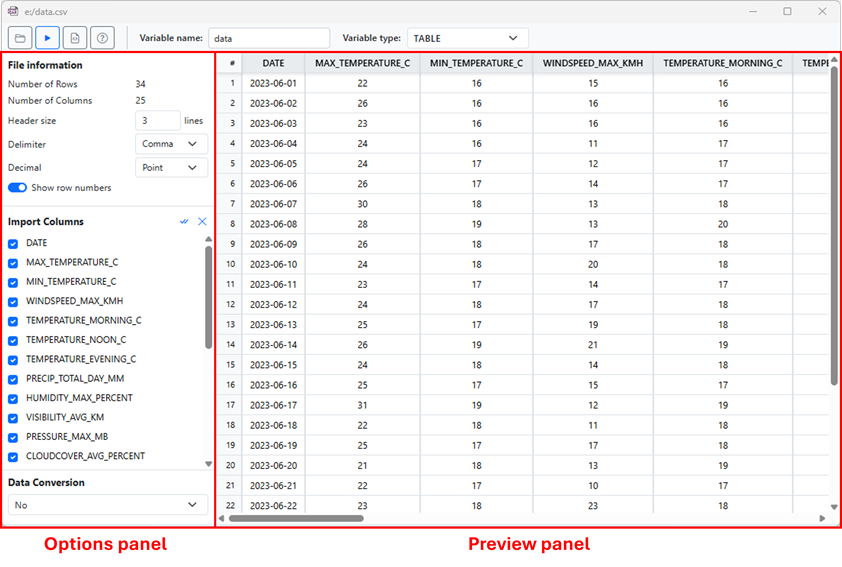
uiimport has several features:
Four buttons to select a file, import as variable, create a function and open help page.
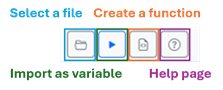
Select a file loads data from CSV/TXT/XLSX file.
Import as variable generates a table, timeseries, column vectors, double matrix, string matrix or cell stored in the variable defined in Variable name. The result is displayed in Scilab console.
Create a function generates a Scilab file with the name "import_" + variable_name + ".sce" saved in the same location as the loaded file. This function contains all commands to create a table, timeseries, column vectors, double matrix, string matrix or cell (variable type selected). This file will automatically appear in Scinotes.
Help page button opens this page.
The user will be able to import data as:
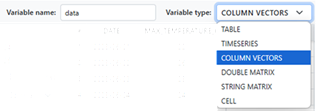
a table,
a timeseries,
column vectors.
a double matrix created from variables of type double,
a string matrix (converts all types to string)
a cell.
It will be able to specify the output variable name.
For timeseries, the user must define the time reference. This popupmenu contains only the names of columns with the datetime and duration type.

File information as number of rows and columns.
For CSV/TXT files,
uiimportautomatically detects the delimiter and decimal separator of the file. The user can change them using the popupmenus.The number of header lines can be set by the user.
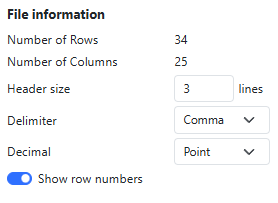
The delimiter popupmenu contains the value "Custom". It allows the user to specify another delimiter.
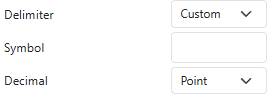
For XLSX files, the user can select the sheet to import using the
Sheetpopupmenu. The delimiter and decimal separator options are not available for XLSX files.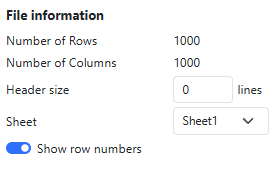
Select the columns to import
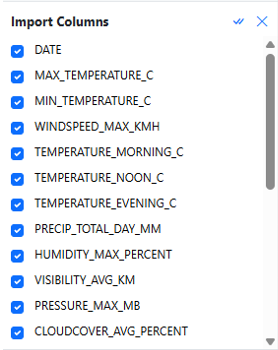
Each column can be selected/deselected and renamed. Each change update the preview panel.
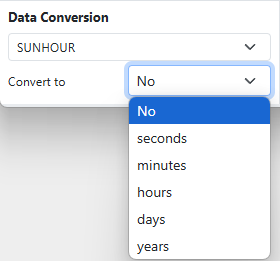
Data Conversion.
The drop-down list contains all column names of double, datetime and duration type. By default, no column is selected. Depending on the column type, the user will be able to
change the input and output format for the datetime and duration types
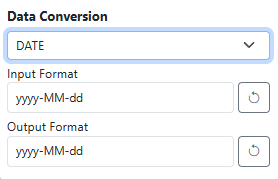
convert the double into duration using the drop-down list
Examples
uiimport(fullfile(SCI, "modules", "spreadsheet", "tests", "unit_tests","meteo_data_bordeaux.csv"));
See also
- table — create a table from variables
- timeseries — create a timeseries - table with time as index
- readtable — create a table from a file
- readtimeseries — create a timeseries from a file
- detectImportOptions — structure containing all useful information to import the file
History
| Version | Description |
| 2027.0.0 |
|
| 2024.1.0 | Introduction in Scilab. |
| Report an issue | ||
| << News feed | UI Data | Documentation : gestion >> |